

برنامج مفيد يضيف أدوات رائعة على الوورد والاكسيل ووفرت لكم نسخة مع تفعيلها في ملف مضغوط مع التعليمات ماليكشي حجة
برنامج مفيد يضيف أدوات رائعة على الوورد ووفرت لكم نسخة مع تفعيلها في ملف مضغوط مع التعليماتموقع البرنامج http://bit.ly/2qrssPo
Kutools - More Than 100 Powerful Functions And Tools For Microsoft Word
box-kutools-word-125x125Kutools for Microsoft® Word is a powerful add-in that frees you from time-consuming operations which the majority of Word users have to perform daily! It contains groups of tools for saving hours of your time! You can use it to easily rename a document, copy a document file and paste the document file to any file location as you want, insert captions, and so on. Kutools efficiently helps you handle the complicated and repeated operations when you process the Word documents, and save your time by boosting your work efficiency.


Document Snapshot: With this utility, you can quickly take a snapshot of the current document (saving a copy of the current document without using the Save or Save as commands) in Word. You can easily restore to the specific snapshot (backup) of the document. Note: The Snapshots (backups) of the document will be cleared after the current Microsoft Office Word process is closed.
| |
Favorites: This utility allows you to manage your documents in a group. You can add a document to a group, open a group of documents with one click. It brings you the group concept to manage documents in Word.
Add Document to Group: add the current document to a new or existing group.
Organize Document Group: organize document group in the group center.
| |
Reload: This utility will undo all changes and reload current document to the last time it was saved.
Note: If the current document has been modified, you will be asked to save the document. Clicking "Yes" will save the document and reopen it. Clicking "No" will reopen the document directly without saving the changes.
| |
Rename (Document): This utility will rename the current document directly without closing it.
| |
More:
 Copy File: You can quickly copy the current document and paste the document to any file location you want. Copy All Open Files: With this utility, you can copy all open documents and paste them to any file location you want. Open Current Document Location: Open the file folder where the current document is stored at with one click. Open Default Save Location: Open the default save file folder for Word with one click. Auto Recovery Location: Open the auto recover file folder for Word with one click. Word Startup Location: Open the startup file folder for Word with one click. Open User Templates Location: Open the user templates file folder for Word with one click. Copy File: You can quickly copy the current document and paste the document to any file location you want. Copy All Open Files: With this utility, you can copy all open documents and paste them to any file location you want. Open Current Document Location: Open the file folder where the current document is stored at with one click. Open Default Save Location: Open the default save file folder for Word with one click. Auto Recovery Location: Open the auto recover file folder for Word with one click. Word Startup Location: Open the startup file folder for Word with one click. Open User Templates Location: Open the user templates file folder for Word with one click. | |
| |
Bookmark Pane: Lists all the bookmarks of the current document within a pane. You can navigate between the bookmarks quickly and comfortably.
| |
Insert (Bookmark): Inserts a bookmark at the current cursor position. Move the cursor to the position you want to insert the bookmark and apply this operation.
| |
Remove (Bookmarks): Removes all the bookmarks from the selection or the whole document. It will only apply to the selection, if you select a part of the document first.
| |
Show/Hide (Bookmark Symbols): Show / Hide the bookmark symbols in the document. Tip: one click to enable it, click again will disable it.
| |
| |
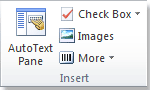
Auto Text Pane: To save the selection into AutoText, and list all the AutoText entries within a pane for conveniently browsing and insert the AutoText entry in the document.
| |
Check Box: Collects various check boxes for common use. It's difficult for you to find the check box when you need to use one.
Radio Button: You can quickly insert multiple Radio buttons at once in the document. Group the Radio Buttons: You can easily group multiple Radio buttons at once in the document. | |
(Insert Multiple) Images: With this utility, you can quickly insert multiple images, with desired sort order, in the document.
| |
More:
Barcode: Insert barcode in the document. From Scanner or Camera: Insert an image or picture from a scanner or camera device.
Frame: A collection of tools for inserting a frame, removing a frame and formatting a frame.
Frame: insert a frame in document. Remove Frames: remove all the frames in the selection. Note: please select a part of document first, and then applying this utility. Format Frames: edit the selected frame. Convert Text Box to Frame: It will convert a text box to a frame in Word 2007, 2010 and 2013. | |
| |
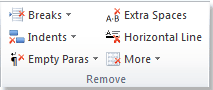
(Remove) Breaks: A collection of tools for removing page breaks, column breaks, section breaks or all breaks in the selection or the whole document.
Remove Page Breaks: Removes all page breaks in the selection or the whole document with one click. It will only apply to the selection, if you select a part of the document before applying this tool. Remove Column Breaks: Removes all column breaks in the selection or the whole document with one click. It will only apply to the selection, if you select a part of the document before applying this tool. Remove Section Breaks: Removes all section breaks in the selection or the whole document with one click. It will only apply to the selection, if you select a part of the document before applying this tool. Remove All Breaks: Removes all breaks in the selection or the whole document with one click. It will only apply to the selection, if you select a part of the document before applying this tool. | |
(Remove) Indents: A collection of tools allow you to remove various indents quickly.
Remove All Spaces/Tab Indents: Removes all the indents in the first line, if the first line of the paragraph is indented using the Space Key or the Tab key. Remove All First Line Indents: Removes all the indents in the first line, if the first line of paragraph is indented with using the First Line Indent marker on the horizontal ruler. Remove All Left Indents: Removes all of the left indents in the current document. Remove All Right Indents: Removes all of the right indents in the current document. Remove All Indents: Removes all of the indents in the current document, and the whole document will be set to align text to the left. | |
Empty Paras:
Remove Empty Manual Line Breaks: Removes all of the empty manual line breaks in selection or the whole document. It will only remove all empty manual line breaks from the selection, if you select a part of the document before applying this tool. Remove Empty Paragraph Marks: Removes all of the empty paragraph marks in selection or the whole document. It will only apply to the selection, if you select a part of the document before applying this tool. | |
(Remove) Extra Spaces: Removes all of the extra spaces from the selection or the whole document. It will only remove all of the empty manual line breaks from the selection, if you select a part of the document before applying this tool.
| |
(Remove) Horizontal Line: Quickly remove all of the horizontal lines from the selection of document or the whole document at once.
| |
More:
Remove Footnotes: Removes all of the footnotes in the selection or the whole document, and the footnotes numbering will adjust automatically. It will only apply to the selection, if you select a part of the document first before applying this tool. Remove Endnotes: Removes all of the endnotes in the selection or the whole document, and the endnotes numbering will adjust automatically. It will only apply to the selection, if you select a part of the document first before applying this tool. Remove Hidden Text: Removes all of the hidden text in the selection or the whole document. It will only apply to the selection, if you select a part of the document first before applying this tool. Remove Pictures: Removes all of the pictures in the selection or the whole document. It will only apply to the selection, if you select a part of the document first before applying this tool. Remove Comments: Removes all of the comments in the selection or the whole document. It will only apply to the selection, if you select a part of the document first before applying this tool. Remove Drop Cap: Removes all of the drop caps in the selection or the whole document. It will only apply to the selection, if you select a part of the document first before applying this tool. Remove Frames: Removes all of the frames in the selection or the whole document and keeps the text. It will only apply to the selection, if you select a part of the document first before applying this tool. Remove HTML Controls: Removes all of the html controls (input boxes, buttons and so on) in the selection or the whole document. It will only apply to the selection, if you select a part of the document first before applying this tool. Remove Tables: Removes all of the tables from the selection or the whole document. It will only apply to the selection, if you select a part of the document first before applying this tool. Remove All Bookmarks: Quickly removes all of the bookmarks from whole document. Remove All Text Boxes: One click to remove all of the text boxes from whole document, it can either remove the text box and keep text or remove both. Remove All Macros: Removes all of the Macros in the selection or the whole document. It will only apply to the selection, if you select a part of the document first before applying this tool. | |
| |
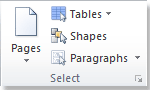
(Select) Pages:
Select Current Page: Selects the current page of the document with one click. Select Odd Pages: Selects all of the odd number pages of the document with one click. Select Even Pages: Selects all of the even number pages of the document with one click. Select Pages: You can quickly select all of the pages in a range or select specific pages. For example, you can quickly select all of the pages from page 10 to page 20. You can also select specific pages, such as to select page 1, page 5, page 9 and page 11. | |
(Select) Tables:
Select Tables: Selects all of the tables in the selection or the whole document. It will only apply to the selection, if you select a part of the document before applying this tool. If you want to select a specified whole table, just place the cursor in it and apply this operation. Select Single Row Tables: Selects all of the tables which contain only one row in the selection or the whole document. If you want to select all of the single row tables in the whole document, please place the cursor outside of any tables before applying this operation. Select Single Column Tables: Selects all of the tables which contain only one column in the selection or the whole document. If you want to select all single column tables in the whole document, please place the cursor outside of any tables before applying this operation. Select Single Cell Tables: Selects all of the tables which contain only one cell in the selection or the whole document. If you want to select all of the single cell tables in the whole document, please place the cursor outside of any tables before applying this operation. Select First Rows: Selects the first rows of all the tables or specified tables. To select first rows of all tables, please place the cursor outside of any tables and apply this operation. To select the first row of specified tables, please make a selection which contains the specified tables you want to select first rows from and apply this operation. Select Last Rows: Selects the last rows of all the tables or specified tables. To select last rows of all tables, please place the cursor outside of any tables and apply this operation. To select the last rows of specified tables, please make a selection which contains the specified tables you want to select last rows from and apply this operation. Select First Columns: Selects the first columns of all the tables or specified tables. To select first columns of all tables, please place the cursor outside of any tables and apply this operation. To select the first columns of specified tables, please make a selection which contains the specified tables you want to select first columns from and apply this operation. Select Last Columns: Selects the last columns of all the tables or specified tables. To select last columns of all tables, please place the cursor outside of any tables and apply this operation. To select the last columns of specified tables, please make a selection which contains the specified tables you want to select last columns from and apply this operation. Next Across Pages Table: Selects the table which spreads more than one page. | |
(Select) Shapes: It will select all of the shapes in the whole document with one click.
| |
Select Paragraphs: A collection of tools to make the selection of various paragraphs much easier.
Select Blank Paragraphs: Selects all of the blank paragraphs in the selection or whole document. Select Shorter Paragraphs: Selects all of the paragraphs which contains less than a specified number of characters in the selection or whole document. Select Heading Paragraphs: Selects all of the heading paragraphs in the selection or whole documents. Note: Only the paragraph with the built-in heading style can be selected. Select Non-heading Paragraphs: Selects all of the paragraphs except the paragraph that is using the built-in heading styles in the selection or whole documents. Select Equations: Selects all of the paragraphs which contain Word equations. Select Embed Word Object Paragraphs: Selects all of the paragraphs which contain embed Word objects. Select Embed Visio Object Paragraphs: Selects all of the paragraphs which contain embed Visio objects. Select Embed Object Paragraphs: Selects all of the paragraphs with embed objects, such as Word objects, Visio objects, Word equations, pictures and so on. Select Single Object Paragraphs: Selects all of the paragraphs which contains only one object. Select Paragraph Last Line: There are 3 types of last line or paragraph style in the Select Paragraph Last Line utility. You can select all of the last lines or paragraphs from a document according to one type of the built-in last line or paragraph style in Word. | |
| |
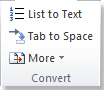
Convert List to Text: You can quickly convert the bullets and numbering list to plain text in the selection or the whole document. Tip: If you select a part of the document first, it will only apply to the selection.
| |
Convert Tab to Space: All the Tab characters in the selection or the whole document will be converted to Space characters. It will only apply to the selection, if you select a part of the document before applying this operation.
| |
More:
(Convert) Table to Text: Quickly convert all the tables of the selection or whole document to text with delimiter. Convert Field Code to Text: You can quickly convert all the field codes of the selection or the whole document to plain text. Convert Endnote to Text: After converting the endnotes to plain text, you can copy the text into the document. Convert Manual Line Break to Paragraph Mark: Converts all the manual line breaks of the selection or the whole document to paragraph marks. Tip: It will only apply to the selection, if you select a part of the document first.Convert Paragraph Mark to Manual Line Break: converts all the paragraph marks of the selection or the whole document to manual line breaks. Tip: It will only apply to the selection, if you select a part of the document first. Convert Equations to Images: Converts the selected equations or all equations to images. Convert Images to Equations: Converts the selected equation images or all equation images to equations. | |
Enterprise Tab | |
| |
Export / Import:
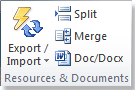
Export Comments: You can export all the comments of the document to a new document. (Import / Export) Custom Dictionaries: Import or export the custom dictionaries to transfer the custom dictionaries from one computer to another computer. (Import / Export) Auto Correct: Import or export the Autocorrect entries to transfer the Autocorrect entries from one computer to another computer. Export Images: You can quickly export all the images of the current document with a specific image format (Jpeg, Gif, or Png) to a folder. Export Doc as Images: One click to convert or save the document to jpeg, png or other image formats, and it can also create html page for managing all saving images. Export Table to Images: You can export all the tables in current document as images with a specified image format (Jpeg, Gif or Png) to folder. | |
Split Document: It can quickly split the current document into multiple documents according to heading 1, page breaks or section breaks.
| |
Merge Documents: It can easily merge multiple documents into one document in word, such as to merge all documents of a folder into one document and arrange the documents order before merging.
| |
Doc / Docx Converter: It can easily convert multiple word documents saving formatting between doc and docx, for example, it can convert doc documents to docx or convert docx documents to doc.
| |
| |
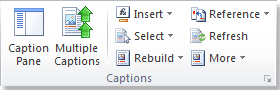
Caption Pane: Lists all of the captions of current document within a pane. You can quickly navigate between the captions and to cross-reference the selected caption at the cursor position.
| |
Insert Multiple Captions: One click to insert captions to all of the tables, equations and figures of the document, and it can also insert captions for SmartArt and Chart in the document.
| |
Insert (Caption): A collection of tools for inserting a caption to the selected table, figure and equation.
Table Caption: Inserts a table caption. Please select the table you want to insert table caption before applying this operation.Figure Caption: Inserts a figure caption. Please select the figure or picture you want to insert figure caption before applying this operation.Equation Caption: Inserts an equation caption. Please select the equation you want to insert equation caption before applying this operation. | |
Select Captions: A collection of tools for selecting table captions, figure captions and equation captions in the selection or the whole document.
Select Table Caption Paragraphs: Selects all of the table captions in the selection or the whole document.Select Figure Caption Paragraphs: Selects all of the figure captions in the selection or the whole document.Select Equation Caption Paragraphs: Selects all of the equation captions in the selection or the whole document. | |
| Rebuild Caption: Rebuilds the caption of a table, figure or equation by using the text below or above the table (figure and equation). The text must include a number (such as text 1). | |
For example, when you copy multiple figures and their captions from Internet, and paste the content in word, you have to manually insert the caption for the figures, if you want to cross-reference the figure captions. But with this tool, you can easily convert the original text to caption.
| |
| Rebuild Table Caption: Rebuilds the caption of table by using the text below or above the table. The text must include a number (such as text 1, table name 22 or xxxx 3). Rebuild Figure Caption: Rebuilds the caption of figure by using the text below or above the figure. The text must include a number (such as text 1, figure 22 or xxxx 3). Rebuild Equation Caption: Rebuilds the caption of equation by using the text below or above the equation. The text must include a number (such as text 1, equation 22 or xxxx 3). | |
Reference (Caption): Lists all the captions of the current document, you can quickly click on the caption item to cross-reference at the cursor position of current document.
| |
Refresh Captions: When you delete some captions but not refresh it in time, then the order of each caption will be disrupted. For example, when there are 5 table captions as Table 1, 2 …5, if you have removed Table 4, the captions may become Table 1, 2, 3, 5. The deleted Table 4 caption is ignored and the captions aren't put in numeric order. By using the Refresh Captions, the whole captions can return to normal numeric order.
| |
More: A collection of tools for selecting the table captions, figure captions or equation captions in the selection or the whole document.
Pick Up Caption: Pickup a caption and then you can use "Put Down Reference" to cross-reference the pickup caption in current document. Put Down Reference: To cross-reference the pickup reference in current document. For applying this operation, you need to first pickup a caption by applying "Pick Up Caption". Error Reference: Searches all the broken cross-references (Error ! Reference source not found) in current document, and supports you with one click to remove the broken cross-references only or remove the broken cross-references and the text. | |
| |
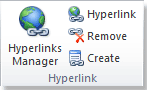
Hyperlinks Manager: Lists all the hyperlinks of the current document in a list for you to quickly manage hyperlinks, such as to change the hyperlink address, edit the hyperlink text, clear the links only and navigate between hyperlinks quickly and comfortably.
| |
(Insert) Hyperlink: Insert hyperlink.
| |
Remove (Hyperlinks): Removes only the hyperlink address from all the hyperlinks of the selection or the whole document with one click. Tip:It will only remove all hyperlinks urls from the selection, if you select a part of the document first.
| |
Create (Multiple Hyperlinks): Quickly insert the same hyperlink url to the text you specified in the document. For example, if you set "Kutools" as the display text, then all "Kutools" words will be inserted to the same hyperlink url.
| |
| |
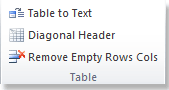
(Convert) Table to Text: Quickly convert all the tables of the selection or whole document to text with delimiter.
| |
Diagonal Header: Creates diagonal cells in the table. Put the cursor in the cell of the table you want to split the cell diagonally and apply this operation. There are 5 types of diagonal table headers.
| |
Remove Empty Rows Cols: Removes all the empty table rows and table columns from the tables in the selection or the whole document. Tip: It will only apply to tables of the selection, if you select a part of the document first.
| |
| |
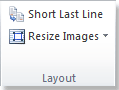
Short Last Line: It will adjust all the paragraphs which end with short last line (which containing less than 15 characters), By doing this, it can save you printer paper and ink when you need to print a document.
| |
Resize Images: You can quickly resize all the image sizes based on a percentage of the current size of images. If you want to apply the size of one image to all other images in the document, please select the image first, and then apply the utility Resize Images with Selection.
| |
| |
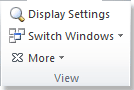
Display Settings: Quickly show the formatting marks and document content, such as paragraph marks, tab characters, spaces, hidden text, bookmarks symbols and so on.
| |
Combine Windows: Show / hide all the currently open windows in the task-bar.
| |
Switch Windows: All the open documents are listed in the Switch Windows pull-down menu, and there will be a check mark before the current document names. It is so easy and quick to switch among different windows.
| |
Close All: A collection of tools for processing the following operations.
| |
 Bookmark Group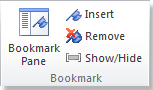
في ملف مضغوط مع التعليمات
حزمة أدوات لبرنامج اكسل Kutools for Excel 16.50 Multilingual
حزمة أدوات لبرنامج الاكسل
Kutools for Excel 16.50 Multilingual

If you are tired of merging worksheets one by one, or frustrated by all kinds of complicated tasks in Excel, Kutools for Excel is the handy tool for you to simplify complicated tasks into a few clicks. It enhances and adds more than 200 advanced functions for you to easily cope with various kinds of tasks in Excel. For example, you can combine sheets quickly, merge cells without losing data, paste to only visible cells, count cells by color, batch operations with one click in Excel and so on. Kutools for Excel is undoubtedly an incredible handy add-in which will save your time and effort.
What's New in Kutools for Excel 16.00:
Insert Bullet
Quickly insert bullet symbols or bulleted list to multiple cells at once.
Insert Numbering
With this feature, you can insert list of numbering into multiple cells quickly and easily.
Remove time from date
Quickly and easily remove time from the date time format cells, and only leave date format.
Toolbar Mode
You can change to different toolbar mode according to your computer screen resolution. If you have higher computer screen resolution, you can choose to use the Medium or Wide toolbar mode. By doing this, it will display more functions in your Ribbon interface.
Off-line html help document is available
The Help document has been added for Kutools for Excel in this version. You can access the off-line help document.
Currency Conversion
Adding the currency abbreviations before each currency in the dialog box to make this feature more clearly and intelligibly.
Fixed
1. Fixed: Large filtered data may be caused Excel crashed when Reading Layout feature enabled.
2. Fixed: Error occurs when typing blank characters in Prevent typing textboxes.
3. Fixed: Other minor bugs.
System Requirements:
Office: Excel/Office 2007, 2010, 2013, 2016 and 365, 32 bit and 64 bit.
Windows: Windows 7/8/8.1/10, XP, Vista, Server 2003, 2008 and 2012.
46.6MB
Download
أحبابي لو وجدتم ضالتكم في هذة المدونة فلا تترددوا في نشر هذة التدوينة والمدونة ولو اردتم اى شئ تبغوني انزله لكم على هذة التدوينة يمكنكم ان تجدونا في هذة المواقع للتواصل الاجتماعي والمراسلة لنا واطلبوا ما تحبوا او تريدوا منا ونحن ان شاء الله سوف نقدمه لكم مجانا لا نريد منكم جزاءا ولا شكورا ولكن نريد منكم دعواتكم بظهر الغيب حيث قرأت ان الدعوة بظهرة الغيب لأحد تعزه مستجابة فعليكم بالدعاء لنا ونشر ومشاركة وتشيير ما ننشره لكم ولو انك ليس بحاجة الى اى منشور انشره لله كعمل خير وكالدال على الخير له جزاءه مثل من قام به على قدر الناس التي ستستفاد من نشرك ولك ان تتخيل مدى وعدد كم من الناس سوف تستفاد من نشرك لهذة المواد التعليمية والمنشورات التي ننشرها على مذكرات تعليمية سترى ملايين من الحسنات تأتيك من حيث لا تدري بنشرك لروابطنا.
إذا ارد ان تجدنا او تطلب شئ نحن فى الخدمة هنا فى :
1 - مدونة مذكرات تعليمية
2 - صفحة مذكرات تعليمية على الفيس بوك
3 - جروب مذكرات تعليمية على الفيس بوك
4 - جروب مذكرات تعليمية الاحتياطي على الفيس بوك
6 - حسابي الشخصي على الفيس بوك مصراوي حر
7 - حسابي الشخصي على الفيس محمد على
8 - مذكرات تعليمية على تويتر
9 - قناة مذكرات تعليمية على اليوتيوب
10 - حسابنا على جوجل بلاس
تعليقات: 0
إرسال تعليق